Subsection15.2.3Part 3: Connecting the Bluefruit, and Its Two Modes
With the driver tested, we’ll take the AD2 off USART1 and put the Bluefruit module there. The connections are given in Lab 9 §4.2, and Table 15.2.7 collects them with their directions.
Note the crossover in both pairs: your USART1 TX goes to the Bluefruit’s RXI, and the Bluefruit’s TXO goes to your USART1 RX; your USART1 RTS goes to the Bluefruit’s CTS, and the Bluefruit’s RTS goes to your USART1 CTS.
Activity15.2.4.Connect your Bluefruit to your Nucleo.
(a)
With nothing powered, make the six connections in the table above, using the Nucleo pins you picked earlier. Note the crossover in both pairs: your USART1 TX goes to the Bluefruit’s RXI, and the Bluefruit’s TXO goes to your USART1 RX; your USART1 RTS goes to the Bluefruit’s CTS, and the Bluefruit’s RTS goes to your USART1 CTS.
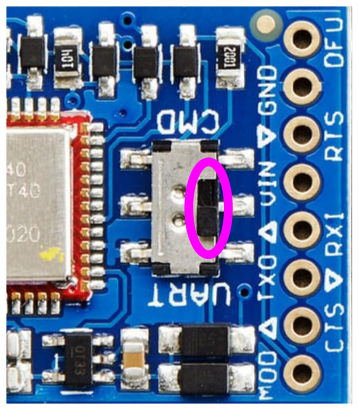
Figure15.2.9.The mode switch on the Bluefruit board, circled. Slide it toward UART for data mode and toward CMD for command mode; the two labels are printed beside it on the board.
The switch’s own label for data mode is UART (Figure 15.2.9), and Adafruit’s documentation calls it data mode. With the passthrough program running and the switch at UART, the app’s UART tab and CoolTerm are two ends of one serial link.
Trouble finding your device? Sort the app’s list by signal strength, or name your device in command mode. Connected, but no characters cross? Check that each RTS reaches the other board’s CTS.
If the app connects but no characters cross in either direction, check the crossover first: the Bluefruit’s RTS must reach the USART1 CTS pin you chose, and your RTS must reach the Bluefruit’s CTS. If you have trouble finding your device, sort the app’s list by signal strength, go to a space with fewer ENGS 28 students trying to find their devices, or give your device a name, which you do in command mode.
Command mode is where the module is configured. Instructions to the module come in the form of AT commands: short text lines, each starting with AT, that configure it or ask it to do something. The name you assign with AT+GAPDEVNAME=chosenName is the name your phone’s scan shows.
Place your Bluefruit into CMD mode by sliding the little switch toward CMD, and keep the passthrough program running on your Nucleo. The module’s responses (OK or ERROR) will appear in CoolTerm.
You wouldn’t want to keep sliding that little switch by hand, and you don’t have to: the MOD pin is another way to select the mode without touching the switch. Lab 9 points you to the Bluefruit schematic, where you can see how the two are wired together.
Connect a GPIO pin on your Nucleo to the MOD pin on the Bluefruit. You can control the mode by switching the pin high (CMD mode) or low (UART mode). In your code you’ll need to initialize the GPIO pin (as what kind of pin?).
The device should then wait, doing nothing, until data arrives. Consider placing the initialization in its own file as a function you can call from any program.
You are then ready to build your system. Your system should behave normally even if there is no other device connected. When a Bluetooth device connects, it should start receiving data from your system, and your system should start responding to commands from the Bluetooth device. Assume the Bluetooth device will come and go periodically, and make sure that your main loop does not depend on any particular state of the Bluetooth system.
When a Bluetooth device connects, it should start receiving data from your system, and your system should start responding to commands from the Bluetooth device.
Assume the Bluetooth device will come and go periodically, and make sure that your main loop does not depend on any particular state of the Bluetooth system.