We’ll start by setting up a project that prints a live counter to your laptop over UART. This is the same workflow we’ll use as a debugging tool for the rest of the course, so it is worth getting the file placement right once. Figure 3.2.1 shows what the finished project looks like in STM32CubeIDE; check yours against it before you build. The program on the laptop side is CoolTerm, the terminal program you installed before the term started: it opens a serial connection to the Nucleo and shows you what the board is sending.
Figure3.2.1.Finished Counter project in STM32CubeIDE. uart.c and uart.h are in Library/mylib/; counter.c is in Src/. All three files are downloaded from the book’s starter files.
Open CoolTerm and click Options. Configure it as shown below, then click OK.
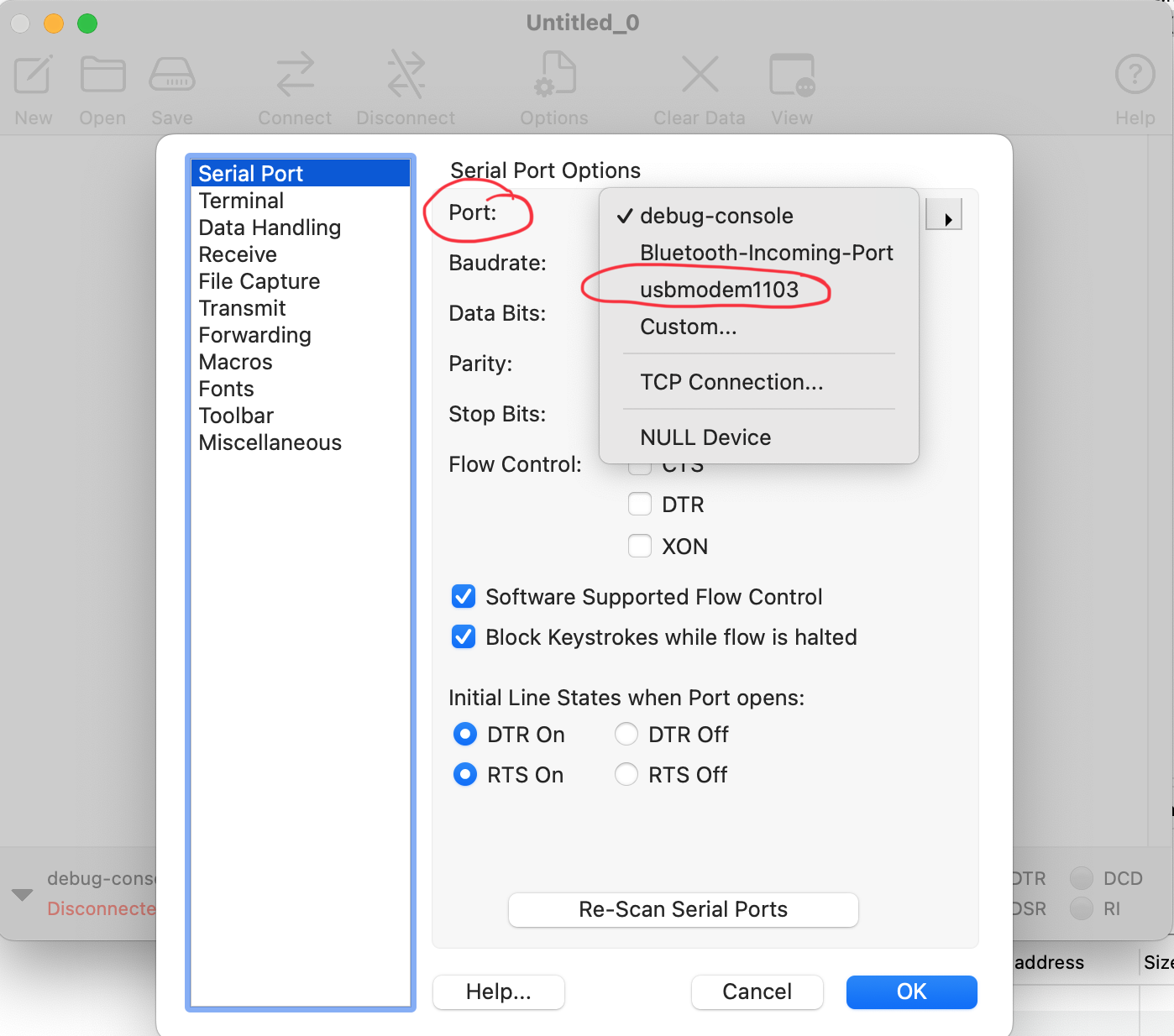
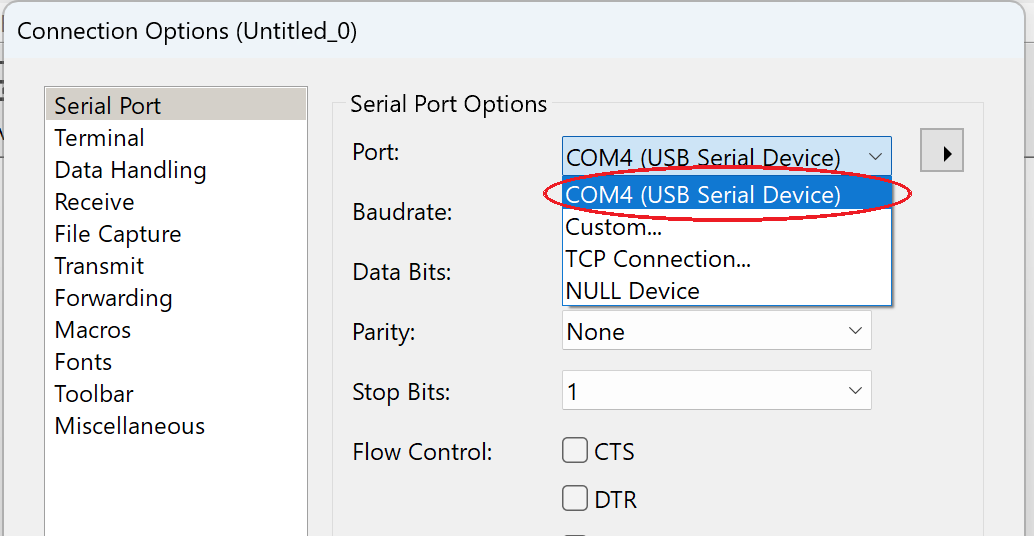
Figure3.2.2.CoolTerm Options, Serial Port. Click the Port drop-down and select the entry that looks like a USB modem or USB serial device, not debug-console or Bluetooth: on a Mac (left) usbmodem…, on Windows (right) COM4 (USB Serial Device), where your COM number may differ. Set Baudrate to 9600, Data Bits to 8, Parity to None, Stop Bits to 1, and leave all Flow Control boxes unchecked.
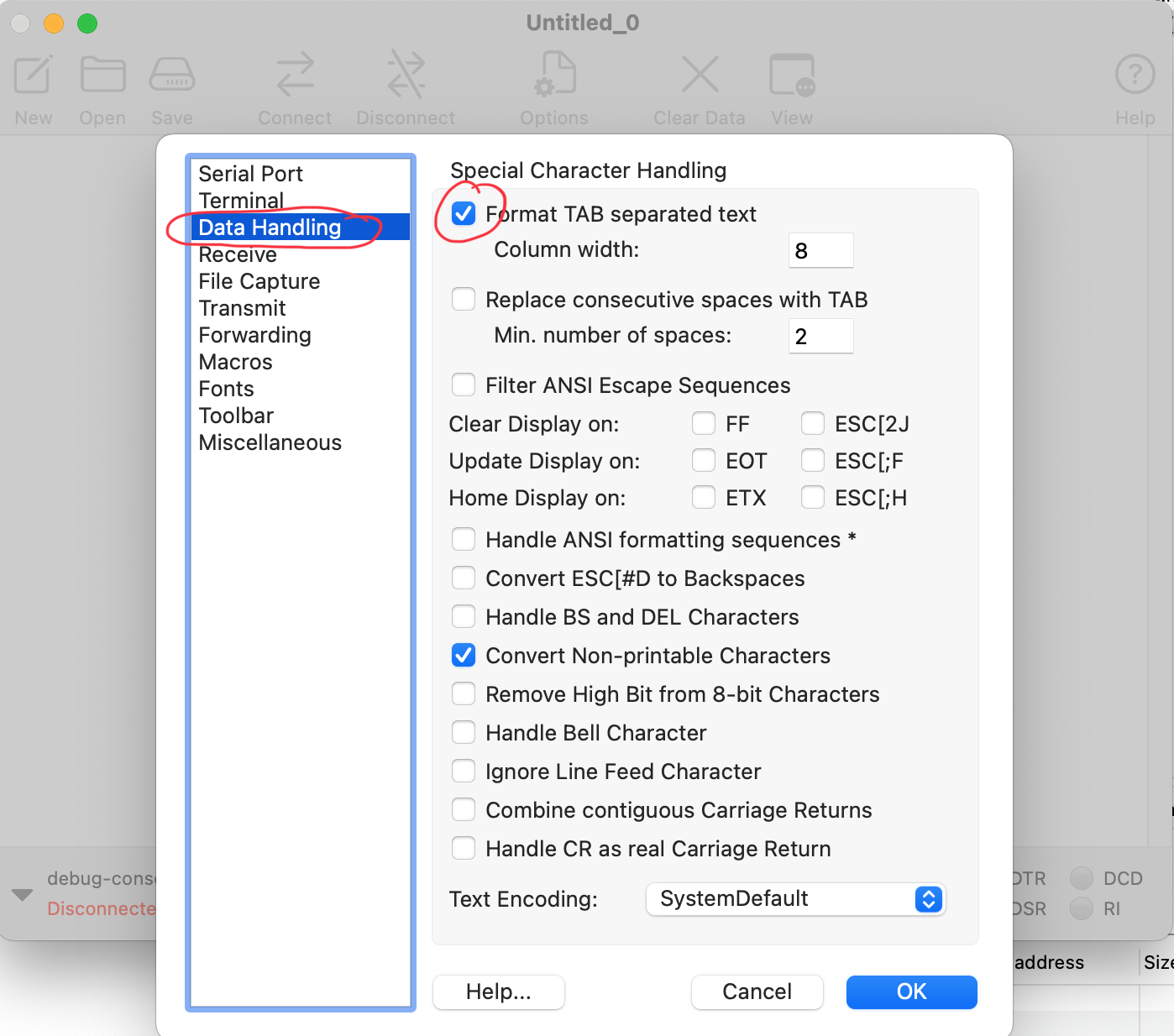
Figure3.2.3.CoolTerm Options, Data Handling (the same on a Mac and on Windows). Check Format TAB separated text and Convert Non-printable Characters, and leave everything else unchecked.
Save the configuration using the toolbar Save button and name the file ENGS28.CoolTermSettings. Next time you can reload it instantly with Open. If you open the saved settings but have your Nucleo connected to a different USB port of your laptop and see a “serial port not available” warning, choose Select a different port and pick the USB modem entry.
Once the counter is working, go back to Options in CoolTerm, change the Baudrate to 4800, click OK, and look at what the terminal prints. Then do the same at 115200, and set it back to 9600 to confirm the counter comes back. For each of the two wrong settings, explain what you see in terms of the bit period: how long the terminal holds each sample window compared with how long the Nucleo holds each bit.
Pick the USB serial port in the Port list: usbmodem… on a Mac (left), COM… (USB Serial Device) on Windows (right). Then 9600 · 8 · None · 1, no flow control.
Data Handling, the same on a Mac and on Windows: Format TAB-separated text + Convert Non-printable Characters.
Save the configuration with the toolbar Save button and name the file ENGS28.CoolTermSettings. Next time you can reload it instantly with Open.
If you open the saved settings with your Nucleo on a different USB port and see a “serial port not available” warning, choose Select a different port and pick the USB modem entry.